
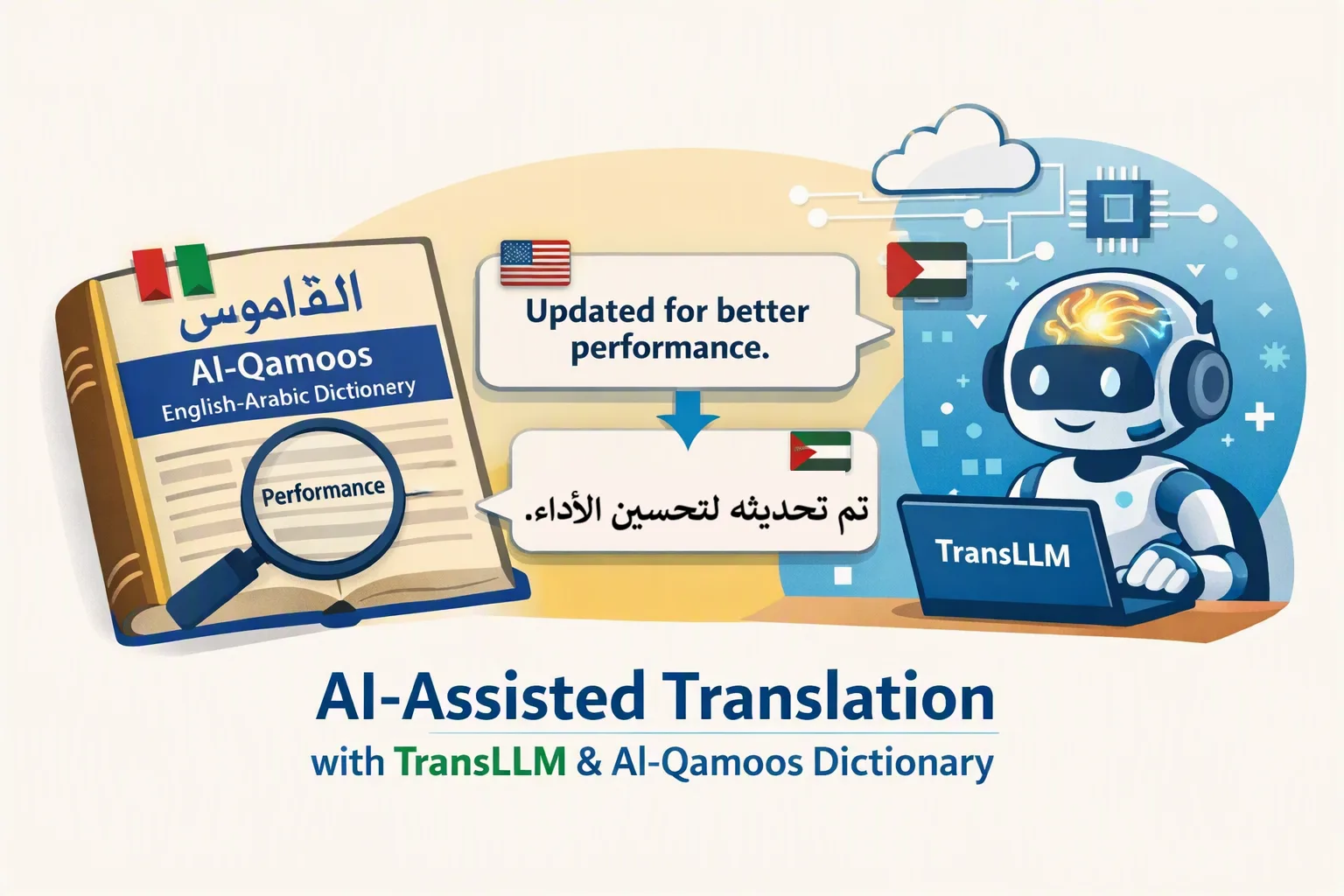
Professional translators know the awkward part of using AI with a CAT tool: the useful suggestion is often in another window, while the source segment, tags, terminology, and final decision are in Trados Studio. TransLLM, a plugin from TranslationApps, brings AI-assisted translation into the Trados Editor itself. You can work segment by segment, keep control of the model, and spend more of your attention on the language rather than moving text between apps.
What is TransLLM?
TransLLM is a Windows plugin for Trados Studio 2021, 2024, and 2026. Add it as a translation provider and it can offer AI suggestions as you move through segments in the Editor. For larger jobs, optional batch pre-translation is available. It also supports tagged segments, CSV glossaries, and custom prompts for a client's style, terminology, or instructions.
That makes it a practical option for translators who want to try large language models without abandoning the CAT workflow they already know. TransLLM is the connection between Trados and an AI backend you select; it is not a translation service that supplies human linguists or a hosted AI model.
Local AI translation in Trados Studio, or cloud when needed
One of TransLLM's most useful choices is the backend. Run a model locally with LM Studio or Ollama, and translation requests can stay on your own computer or local network. When a project permits cloud processing, the plugin also supports Hugging Face and Ollama Cloud using your own access. The selected cloud provider receives the segments and prompts you submit, under that provider's terms.
This flexibility matters when projects have different confidentiality requirements. Local processing can be attractive for sensitive material, while cloud models may suit a job that needs different capabilities or hardware than you have available. In either case, check your client's agreement and the chosen model's data-handling terms before you translate confidential content. TranslationApps says the plugin does not route translation text through its own licensing servers; license activation and checks still require some internet access.
Make terminology a deliberate part of the workflow
Good translation is not just fluent wording. A technical term must be right for its subject, a brand name must stay consistent, and an Arabic equivalent needs to fit the intended meaning. TransLLM lets you supply a CSV glossary and tailor prompts, so your preferred terms and instructions can travel with the AI request. The translator still decides whether each suggestion is correct.
For English-Arabic work, a sensible routine is to research a difficult term in Al-Qamoos English Arabic Dictionary, check the relevant domain and context, and then enter the approved equivalent into your project glossary. Use TransLLM to draft inside Trados, then review the Arabic for meaning, register, grammar, and consistency. Al-Qamoos and TransLLM are complementary tools; there is no claimed direct integration between them.
Why this beats a copy-and-paste AI routine
Moving each segment into a chatbot can interrupt a translator's rhythm and separate the answer from the surrounding CAT project. TransLLM keeps suggestions where review happens: beside the segments in Trados. You can use a local model for one project and a cloud model for another without changing the basic editing workflow. Custom prompts and glossary entries help you state the brief once instead of repeating it by hand for every term.
None of that removes the need for professional review. Model quality varies by language pair and subject matter, and a smaller model may ignore part of a prompt or paraphrase a required glossary term. Treat every output as a draft: verify terminology, preserve tags, check numbers and names, and read the target text as carefully as you would any machine-translation suggestion.
How to get started with TransLLM
- Download the plugin that matches your Trados Studio version.
- Choose a local backend such as LM Studio or Ollama, or configure an available cloud backend with your own account.
- Follow the official setup guide to connect a model, then add TransLLM as a translation provider in Trados.
- Test it on a short, non-confidential project. Add a small glossary, compare its suggestions with your own translation, and adjust your prompt before using it on a real client job.
The product demo shows the Editor workflow. Check the official download page for current trial and subscription terms; cloud model usage is separate from the plugin license.
Frequently asked questions
Can TransLLM work without sending my text to a cloud AI provider?
Yes, when configured with LM Studio or Ollama running locally. According to TranslationApps, segments sent to a local backend stay on your hardware or local network. License activation and periodic checks still use an internet connection. See the official privacy policy for details.
Does TransLLM replace a translator or terminology review?
No. It provides AI-generated suggestions inside Trados. You remain responsible for the final translation, and models can miss instructions or choose the wrong term. For specialized English-Arabic projects, use domain-aware references and human review before delivery.
Do I get an AI model with the plugin?
No. For local use, install and run a compatible model through LM Studio or Ollama. For cloud use, supply access to a supported provider. The plugin connects Trados to that backend; model availability and any cloud charges depend on the backend you choose.
Bring AI into the translation workflow you trust
The appeal of TransLLM is not that AI suddenly makes translation effortless. It is that a translator can put AI to work inside Trados Studio, choose a suitable local or cloud model, and keep terminology and final judgment in human hands. If you already work in Trados and want a more controlled way to explore AI assistance, explore TransLLM at TranslationApps, then put it through its paces on a project you know well.